Setting Up a Linux Working Environment on an Android Tablet
Target Outcome
- Run the LUbuntu operating system on a Nexus 7 tablet via chroot
- Be able to run common software such as an editor, browser, terminal, IDE, Octave (a MATLAB alternative), etc.
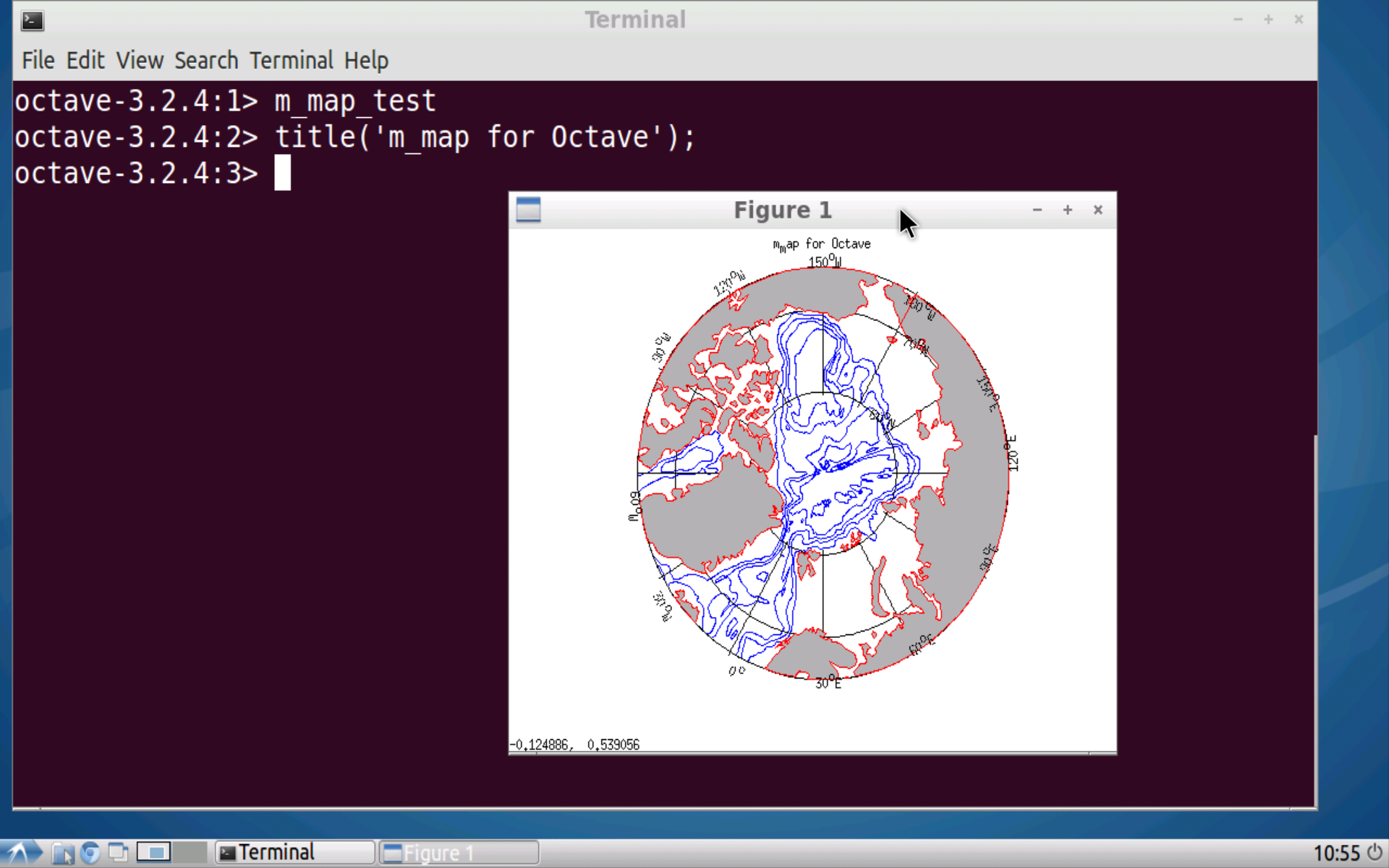
- Be able to write and compile programs on the tablet, and do normal work such as plotting with m_map in Octave
Screenshots
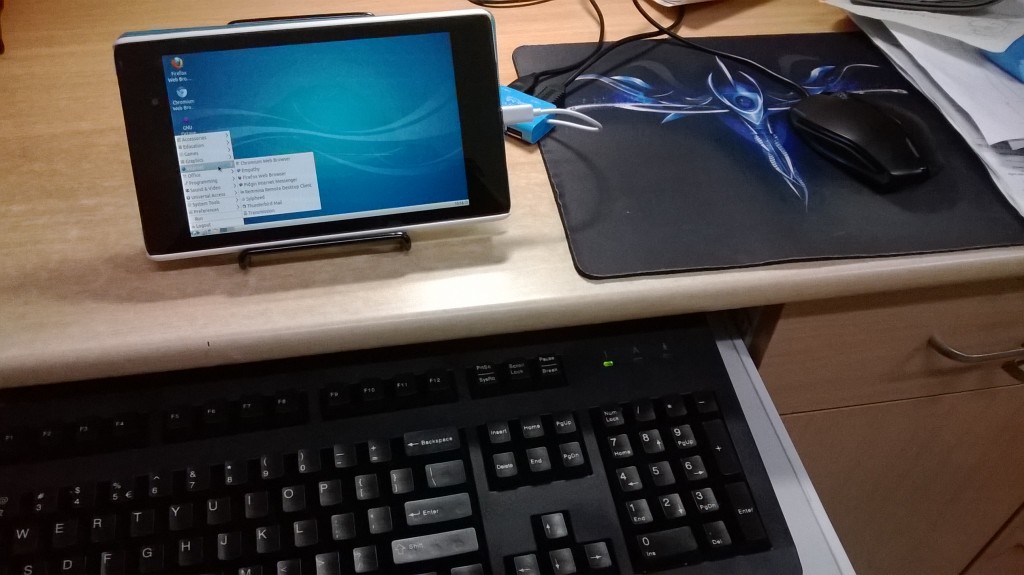
Live shot
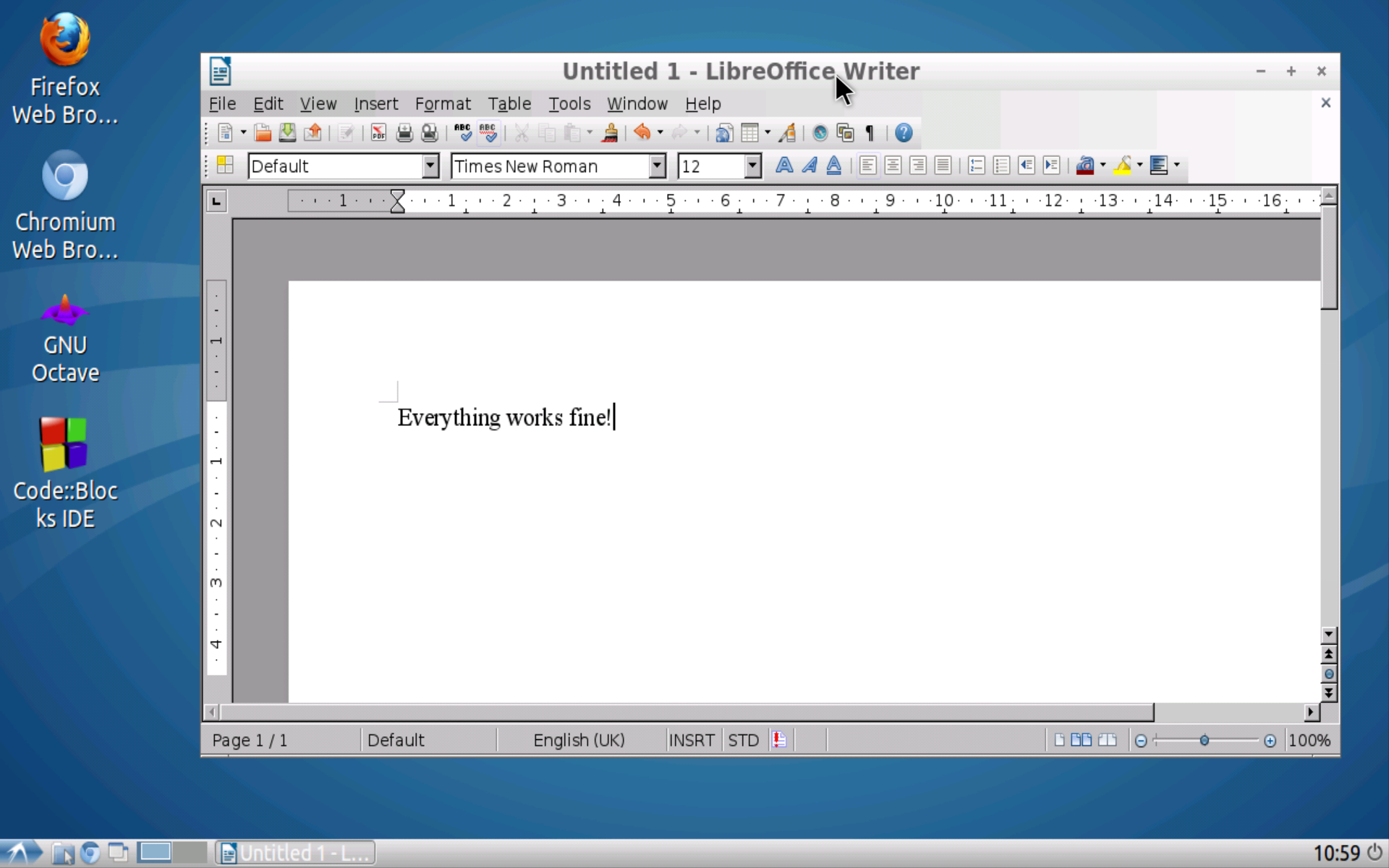
Office software
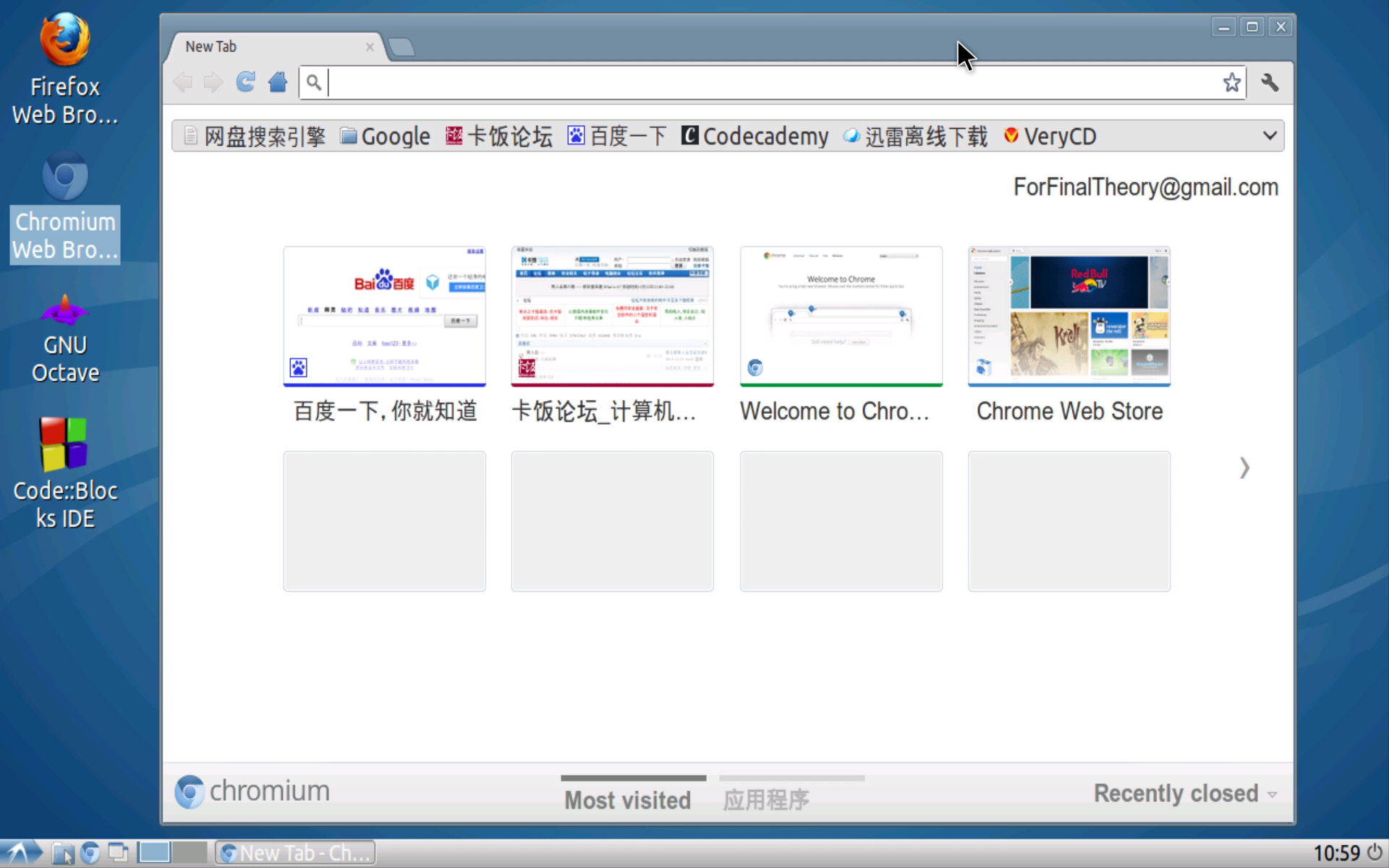
Chrome browser
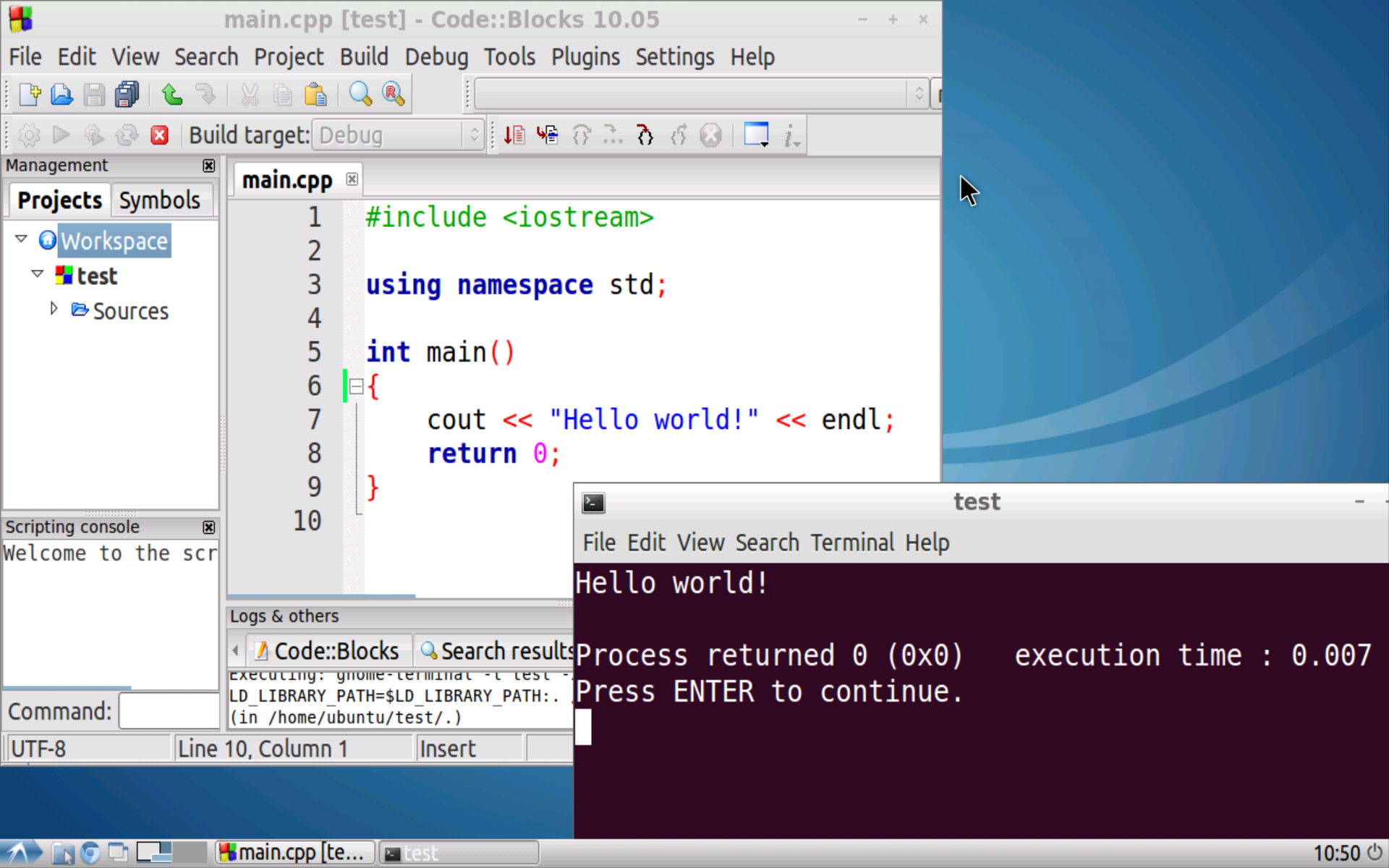
C/C++ programming
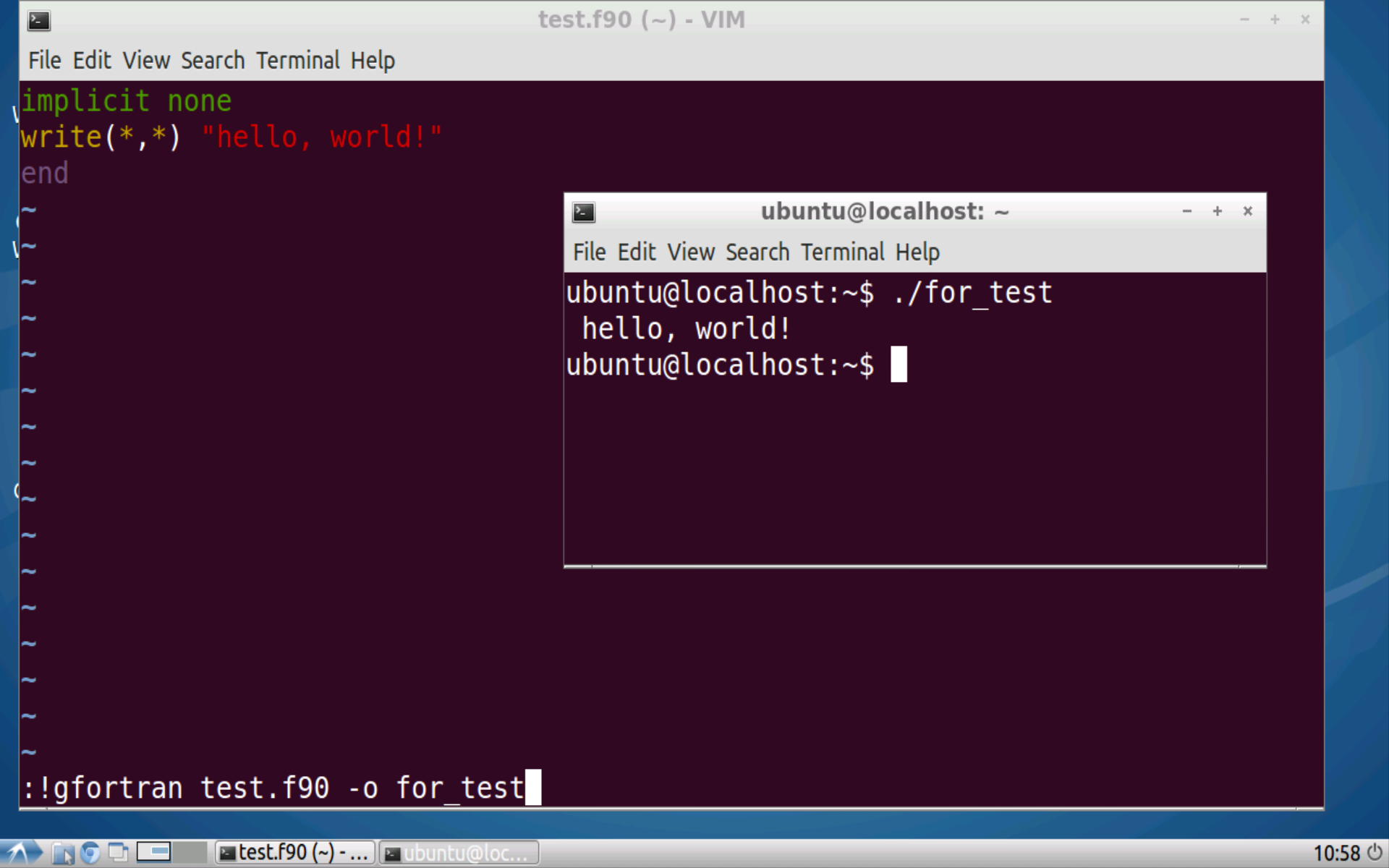
Fortran programming
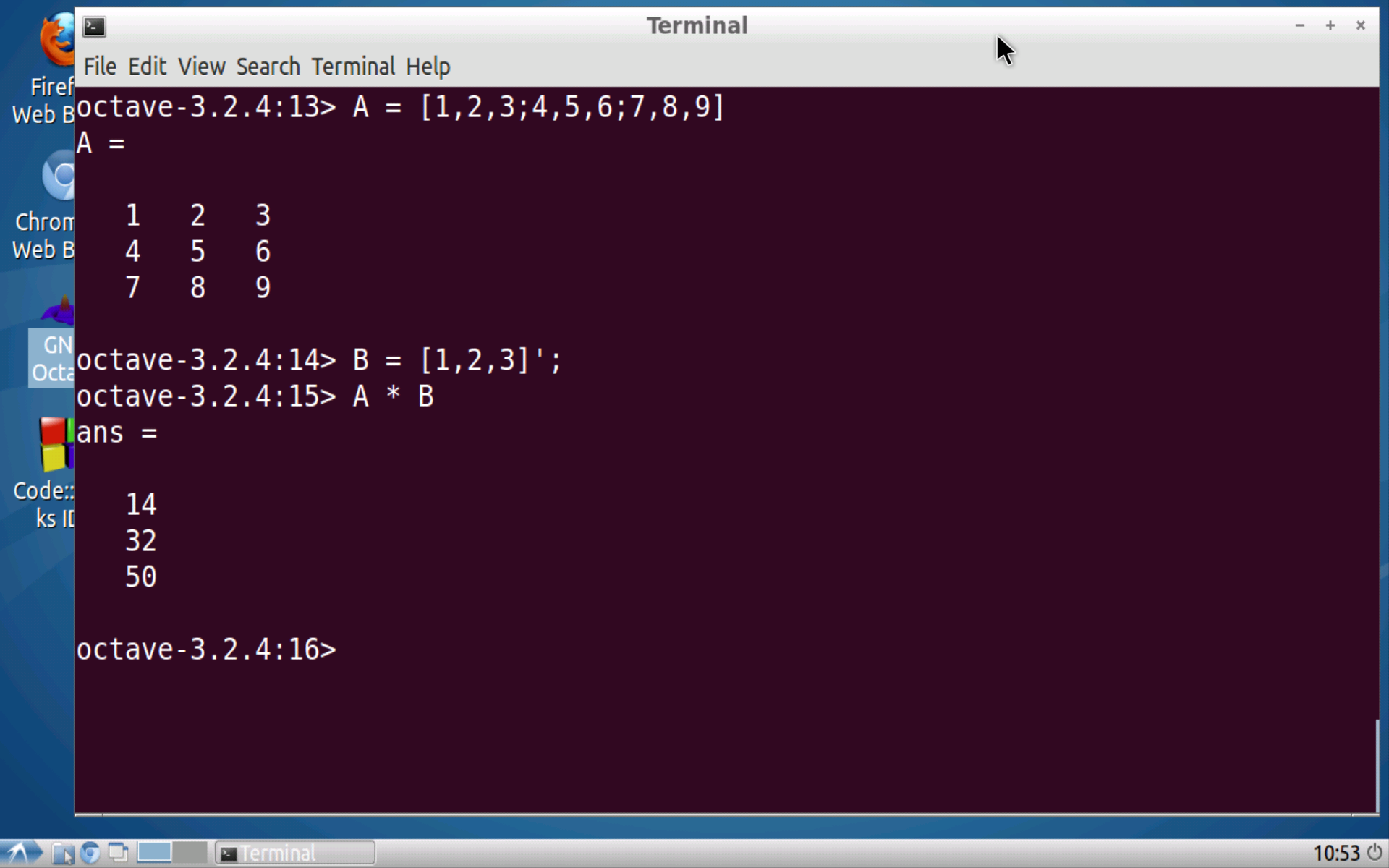
Octave computation
m_map plotting
Hardware Requirements
- One Nexus 7 II / Nexus 10 tablet
- OTG cable, USB flash drive (optional)
- Wireless keyboard and mouse set (Bluetooth keyboard/mouse also works)
Software Requirements
- The system is already rooted
- Android Terminal Emulator (terminal emulator)
- XServer XSDL
- SSHDroid (optional)
- Complete Linux Installer (optional)
Procedure
- Download the img image and script files (download link)
- Create a folder named "Ubuntu" on the tablet, extract the image into it, and put the script there as well.
- Change Terminal Emulator's "Initial command" to:
su -c 'sh /sdcard/Ubuntu/boot_lubuntu.sh /sdcard/Ubuntu/ubuntu.img'
- Start XServer XSDL, set Resolution to 1280x720, and Font Scale to 0.6 (using Nexus 7 II as an example; adjust for other tablets as needed)
- Exit and relaunch Terminal Emulator; it will automatically execute the script in the terminal and enter the Linux system
- Connect the keyboard and mouse, switch to XSDL, and you can start working in the graphical interface
Overview of the Principles
Prerequisite Knowledge
- Basic Linux file operations and package manager usage
- Familiarity with WinSCP, Putty, or similar tools
Basic Approach
- We know Android is an operating system based on the Linux kernel;
- We also know Linux has the chroot command, which can change the root directory to enter another system environment;
- We also know an img image can be mounted directly as a directory, and directories such as /proc can also be mounted via "bind";
- So through various mounts, we can enter an environment that is effectively a real Linux system—this is what the startup script boot_lubuntu.sh provides.
- Then we start XServer XSDL in Android, and start a desktop environment in the Linux shell (equivalent to an XClient);
- This way, XServer can use the tablet's hardware resources to draw the GUI.
Image Details
- Modified from the Ubuntu 12.04 system image made by the LinuxOnAndroid project
- Added:
- LUbuntu, LXDE desktop environment
- Development tools such as g++ and gfortran compilers
- Applications such as CodeBlocks and Octave
- Removed:
- Most software that cannot run properly
- Changed:
- Default terminal is gnome-terminal
Script Details
- The startup script used here, boot_lubuntu.sh, is modified from the built-in script in Complete Linux Installer. It handles image mounting, desktop environment startup, and other functions. If you need the original version for reference, extract it from the original software yourself using appropriate tools.
- All parameters of this script are optional:
sh /sdcard/Ubuntu/boot_lubuntu.sh [image name] [startup option] [port] [ip address]
- [image name] specifies the absolute or relative path to the img file to be mounted as the root filesystem. If not specified, it will try to mount “ubuntu.img” in the same directory as the startup script by default; if it does not exist, an error occurs.
- Optional values for [startup option] are “1, 2, 3, 4” (default is 1), used to start:
- LUbuntu desktop environment
- A simple LXDE desktop environment
- Linux with the VNC service running
- A Bash shell without specified environment variables
- [port] is used to specify the port XServer listens on; the default is “:0”. However, occasionally after XServer XSDL starts it may listen on another port such as “:1”; in that case, you can use this parameter to specify it.
- [ip address] is used to set the server address for Synergy (software for sharing a keyboard and mouse between a tablet and a computer). This software is not preinstalled in the image; only the parameter option is reserved.
- Note that you cannot skip parameters when using it; for example, you must specify the startup option before you can specify the port.
Afterword
- I wrote this up because it was mentioned in a blog post that got widely reposted on Renren before: you could use a Nexus 7 as a backup when your laptop runs out of battery, so you could still make do with a tablet when playing CF.
- But after waiting a long time, that author never updated the related content again, so I had no choice but to write it myself.
- A couple of days ago, I happened to see an app on Google Play that implements basic XServer functionality.
- That made me realize that with this, you can use Linux without shutting down Android's built-in UI.
- After searching online, I found there are essentially ready-made solutions and many prebuilt images.
- Still, I made some personal customizations and modifications on top of that, which is how this article came about.