Preface
I needed to help a girl grab tickets these past two days, but I could not keep my computer running all the time just for that. Since a VPS server is online 24/7 and has very fast bandwidth, why not make use of it? So my first thought was: has anyone written a ticket-grabbing app that runs on a VPS? Unfortunately, after looking around, I found none. Then I turned to browser ticket-grabbing extensions, and those turned out to be quite popular.
To use those extensions, I needed to run a browser on the server. On Linux, the most lightweight option is Firefox; if that does not work, Chrome is also an option. But I did not want to install a full LXDE desktop environment just to enable a GUI (it should be one of the smallest desktop environments on Linux), since 20 GB of SSD space on a VPS is pretty tight.
Then it occurred to me that I might be able to use X11 Forwarding to launch GUI applications locally without installing a desktop environment. So I looked up the relevant materials and first made sure I fully understood the principles and practical operation of SSH port forwarding; see this blog post.
X Server / Client Basics
The X Window graphics system on Linux is a classic Server/Client architecture. GUI applications such as Firefox are effectively clients, i.e., X Client. When written, these programs naturally call APIs related to UI rendering, but those APIs are essentially just a layer of abstraction; what they really do is send a large number of low-level drawing commands. The actual component that uses the GPU and other hardware resources to draw windows and perform real rendering is a separate server-side process, the X Server, which can be regarded as an independent server program. The two communicate over normal network protocols: once the server receives drawing commands from the client, it renders the image on the screen.
The key advantage of this design is that the client and server are decoupled and can run on different machines. In other words, you can run a GUI program on one machine without starting an X Server; the drawing commands are transmitted over the network to another machine that has an X Server running, and then the X Server uses the local hardware to display the UI on its screen. This means that on a VPS I can install only Firefox without installing a desktop environment, then start an X Server on my laptop, and with the right configuration, have the browser running on the VPS appear as a native window on my laptop.
The question is: how do you configure this? As mentioned earlier, for an X Client, all the GUI API calls are really just sending low-level drawing commands over the network. But where are those commands sent? Where does the X Client look for an available X Server? On Linux, an important environment variable, $DISPLAY, is used to specify the address and port that these drawing commands are sent to. Typically it looks like this: localhost:10.0. The part before the colon indicates the IP address of the host running the X Server; localhost naturally means the local machine. The part after the colon indicates the port offset and the screen number.
A brief explanation is needed here. The screen number is straightforward: one machine can have multiple displays, so they are numbered starting from 0. The port offset indicates the port that the X Server listens on. The base port is 6000, but it may be occupied, so an offset is added until an available port is found. Putting it together, the example above tells all X Client programs started by the current user that an X Server capable of displaying graphics is listening on localhost port 6010, with screen number 0. They simply need to send drawing commands to this address to render normally.
With this in mind, we can make an educated guess about the startup sequence of a Linux system with a desktop environment: since the X Server is the actual operator of hardware resources, it likely has higher startup priority. During its startup, because the machine is running various network services, the default X Server port 6000 may be occupied; the X Server will then try the next port until it finds one available. Perhaps because many people like to run services on port 6000, some X Server implementations now start trying from port 6010 by default. After the X Server starts successfully, it sets $DISPLAY based on the port it is listening on. After that, as X Client programs start one by one, they send drawing commands according to this environment variable and run successfully.
X11 Forwarding
We have described the rough drawing flow of the X Window system. The next question is: how can we make an X Client running on a remote machine send commands to the local X Server for rendering? As stated above, in general, as long as $DISPLAY is set correctly, the X Client can run properly. The problem is that a local computer such as my laptop typically does not have a public IP address, so how should this variable be set? This is where SSH port forwarding shines: we can forward the port that the local X Server listens on to some port on the remote server, then set the $DISPLAY IP address to localhost and the port to the corresponding forwarded port.
For example, run the following on the local machine (my laptop):
ssh -N -f -R 6010:127.0.0.1:6010 user@server_ip_address
This forwards local port 6010 to port 6010 on the VPS server, then set the environment variable:
export DISPLAY=localhost:10.0
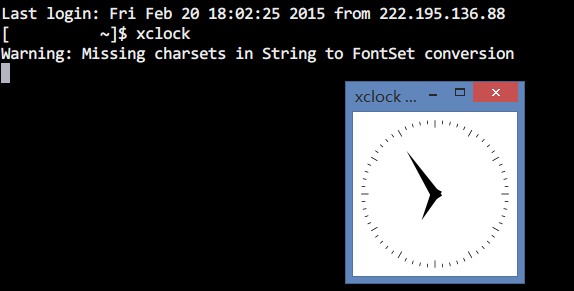
In this way, Firefox running on the VPS as an X Client will try to send drawing-related information to port 6010 on the VPS. That traffic is forwarded by SSH to the corresponding port on the local laptop, where an actual X Server is listening. The laptop then renders correctly. The actual result looks like this:
Practical Steps
On Windows, configuring X11 Forwarding is very simple: just check the corresponding option in your SSH client. A recommended all-in-one tool is MobaXterm: like Putty, it supports X11 Forwarding, and it also comes with an X Server, saving you from installing one via cygwin. It also supports many remote-control protocols besides SSH, such as very handy VNC and SFTP, and it can store passwords.
The host that runs the X Client also needs some configuration. First edit /etc/ssh/sshd_config and add the following three lines:
X11Forwarding yes
X11DisplayOffset 10
X11UseLocalhost yes
Also make sure xauth is installed. On Fedora you can run:
sudo yum install xauth
Conclusion
Unfortunately, although I spent quite some time and reviewed some networking concepts, this approach failed in practice. While it can bring up the GUI, once the SSH connection is disconnected, the GUI also dies. Thinking carefully about how X11 forwarding works, this is obvious: it is precisely the SSH tunnel that allows the VPS server to communicate with the client port (i.e., my laptop), so that window rendering can be performed on the X Server graphics system running on the client. Once the connection is broken, the remote port forwarding is also torn down, and the X Client running on the VPS can no longer communicate with the X Server. There is no way to keep a GUI application running in the background.
On the other hand, compared to VNC, which uses compressed transmission, the raw X Server protocol is painfully inefficient for transmission. Even on a LAN it can feel laggy; over an international remote connection it becomes a disaster. In contrast, VNC performs surprisingly well and can be operated basically smoothly.
In the end, I built my own tool: a small script written in Python that polls the 12306 website and checks ticket availability. If tickets are found, it calls mutt to automatically send an alert email to a specified mailbox. In practice it works quite well. When using it, you should set up an email notification sound on your phone so you do not miss it. One downside is that once it finds tickets, it will keep sending emails, so after you get a ticket you should stop the program promptly, and do not set the polling interval too small.
Appendix
Under yum-based package managers, a quick command to remove unused dependencies:
package-cleanup --leaves | grep -v refresh-packagekit | xargs yum remove -y
This command finds all leaf nodes in the package dependency tree and invokes yum to remove them.
However, note that after you remove the previous leaf nodes, some new libraries become leaves. Since this command is non-recursive, you can run package-cleanup --leaves again to list the newly created leaf nodes and continue removing them. In general this command should not list core system libraries or normal application packages, but you should still be careful and ideally review the list manually before deleting.
PS: The package-cleanup command is provided by the yum-utils package.